Blogger Tricks
W3C validate blogger XHTML template~Must Read | | | Complete SEO Guide Step by Step | | | My Huge Dofollow Blogs List

Boost PR and Traffic

Easy SEO Optimization

Technology News [ View all related posts ]

Latest Updates

Google Groups

Subscribe to our Newsletter to GET SEO Tools, Backlink Resources, SEO E-books , Make Money Online and Make Money Blogging Guides delivered to your mail box Absolutely FREE!!!

Hot!!! Get Complete Email Marketing Course "How to start from Scratch and earn like a pro". Guide will be delevered to your mailbox within 24 hours of your subscription

Email:
ProSEOexpert
Showing posts with label Blogger Tricks. Show all posts

Dec 12, 2011

Feed could not be found at - Blogger Problem Fixed

5 comments
From past few days I was experiencing a problem with my blogger blog. My problem actually was when ever I tried to post a comment in a commentluv blog I used to get error as shown in bellow screen shot

I tried extremely hard to find solution of this problem over internet , also tried many help forums but no use.
Today at night when I was playing with my post and comment feeds I found that my post feeds were not redirecting towards my feedburner feeds and this problem just stucked in my mind, and I found the silly but working solution of this problem.


How to fix Feed could not be found at Error in blogger:


Just follow the simple steps bellow

1. Login to your blogger account. then click on settings in dashboard, click on site feed.
2. check that you have entered your correct feedburner feeds url in Post Feed Redirect URL slot.
3. In my case I missed http://

After correcting url as shown in image bellow,

The problem got solved, as you can see in bellow image.

Though the above error was very silly, but when everything goes wrong  sometimes such error occurs, Just search in google you will find this question everywhere unanswered. :)

Dec 6, 2011

W3C validation for blogger XHTML templates

29 comments
Hi guys, today we will  validate your blogger XHTML template.
By validating your blogger template you can minimize your site loading time and increase google bots crawling rate to great extent therefore can do better in SERP's to increase your blog traffic.

”W3C-validate-blogger-XHTML-template”

However Completely removing validation errors from a blogger template is not possible because some server side scripts are out of reach of us that can be only controlled by blogger team. Such as a blogger navbar creates Invalid XHTML errors but it is a server side program so it cant be controlled by us, when we load webpage the navebar code is automatically inserted in ur sites XHTML code,this can not be fixed by just hiding your navbar.

So we will atleast try to Minimixze Blogger XHTML Template's code to validate it for W3C ('World Wide Web Consortium').

Check Out your blogger XHTML Template Errors:

Before proceeding towards tutorial first first of all let’s check out the number of errors and warnings your blog encounters.

Visit this Validation Service and enter your blogger URL and HIT the check button.

Now Got the count of errors! Don't worry about errors and warning just follow the tutorial given bellow and you will see the difference yourself.(Make sure you take backup of your blogger template before applying every step)

Here we starts tutorial,


How to validate blogger XHTML templates for W3C


Step 1:
Login to your blogger account > Design > Edit html
Find the following code,
 <!DOCTYPE html PUBLIC "-//W3C//DTD XHTML<span style="">  </span>1.0 Strict//EN" "http://www.w3.org/TR/xhtml1/DTD/xhtml1-strict.dtd">
 It may look like this
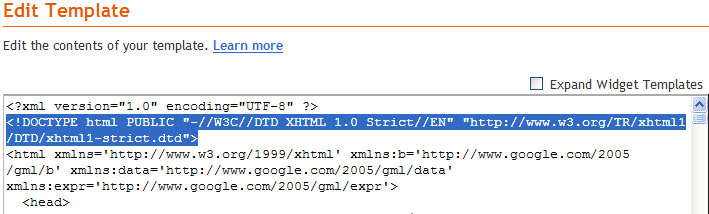
”W3C-validate-blogger-XHTML-template”
And replace it with,

<!DOCTYPE html PUBLIC "-//W3C//DTD XHTML<span style="">  </span>1.0 Transitional//EN"<span style="">  </span>"http://www.w3.org/TR/xhtml1/DTD/xhtml1-transitional.dtd">
After replace it should look like this,
”W3C-validate-blogger-XHTML-template”


Step 2: Fixing Quickedits the biggest bug that produces invalid results in blogger XHTML template

What is quickedit?

When you visit your blog with signed in to your blogger account you get facility to edit any post or any widget at the spot by clicking the quickedit icon at the right bottom of widget.
It looks helpful but actually it is the biggest evil that comes accross blogger XHTML template validation.

To remove quickedit, login to your blogger account > Design > edit html > check the expand template box (dont forget to take backup of template)


Now find following code
<b:include data='post' name='postQuickEdit'/>

and/or
 
 <b:include name='quickedit'/>
And delete these codes, Remember when you will add new widget a new quickedit code will be added to your template, So dont forget to aply this step every time after you add any new widget.

 Step 3: Always add alt tag to images

As per W3C standards adding ALT tag to images is must so every image used in your articles must have a alt tag specified, Also another benefit of adding alt tag is that you will get better rankngs in image search engines such as google image search
 Check this out for more about how to ad alt tags  Image SEO-Image Optimization Tips.

Step 4 : Dont use Archive with Hirarchycal view

Not using hirarchycal view of Archive widget will also help you to minimize your invalid XHTML blogger template errors.

Step5: Dont allow Hyperlinks in comments

If possible dont allow hyperlinks in comments, Using href tags in comments produces invalid XHTML results.
So say no to clickable links in comments.

Now check your blog for validation again:
Again go  Validation Service and see how many errors and warnings you reduced. :)

Overall conclusion:

A blogger template XHTML by default produces invalid results which affects your sites crawl rate and also loading time. By fixing /minimizing invalid XHTML errors you can do better in SERP's to have a nice flow of search engine's traffic to your blog.

If you have more tips and suggesions over Fixing/Mnimizing blogger XHTML template validation bugs then feel free to share with us.

Dec 5, 2011

Image SEO-Image Optimization Tips

23 comments
Image SEO is one of the important thing that many of bloggers forget to do. To get high rankings in image search results Optimizing images is a neccessary step.
Image searches like google image search have huge potential to drive search engine traffic to your sites and therefore increasing your sites traffic. There are certain aspects that defines images, by optimizing these aspects you can drive a huge flow of organic traffic to your site thus increasing your sites google search rankings.
”SEO
Image Optimization for search engines is a very easy task and can be perfectly done by following the tips given bellow.
So here we starts,


File Size


To reduce your sites page load time you should keep your images size as small as possible offcourse without sacrificing image quality.
Using a large image and reducing it's size by applying height and width tags will not going to help you but they will create trouble for you. If you use a large image and apply height and width tags to reduce its size actually it loads full size and then browser will resize it according to height and width attributes. That means here not only extra loading time but also a resizing time will be required which will cause your webpage loads slowly.


Keywords in File name


File name will surely help you to rank higher in SERP's, the words in filename are considered as Keywords (See the image bellow).
”SEO

 So give your Image a proper name that should consist of proper description containing keywords of the post for which you are going to use that image.


Image alt Tag(Most Important)


Use proper image title tag in image url as bellow
<img src=”your image url here” alt =”sample alt text here/>
Alt tag is the primary thing on the basis of which images are ranked in image SERP's. So select your alt text carefully and try to be descriptive along with blending your keywords in that description. 

Title Tags


Title tags are not so important as alt tags but they still are counted, so better to use them.
Title tags can be used in image url as follows,
<img src=”http://sample-url-here.com” alt =”sample alt text here” title=”sample title text here”/>


Don't Stuff

This is basic but I am still reminding you, don't keyword stuff filename, alt tags and title tags. Let them be short, targeted and descriptive.

Overall Conclusion

If you are spending hours to write your posts then don't feel lazy to optimise your post images. Remember these small things will only help you to beat your competitors. It is nothing but something like "Overtaking your competitors when they are sleeping".

Dec 2, 2011

Optimize Post Titles Using H2 tags in Blogger - Better SEO

47 comments
Recently I explained tutorial for How to change Title tags in blogger for better SEO and today I am here with most important H2 Post Title Optimization Technique.
Not optimizing H2 heading tags in a blogger blog is a biggest mistake that many of bloggers do.
Google has already cleared that google bots reads your content just like a human reads it, headings, highlighted and bolded text draws more attention of both visitors and google bots.
Heading tags starts from H1,H2 and go up to H6 in decreasing order of size and importance. By default all blogger templates have H1 tags assigned for Homepage Main Title, H2 tag for blog description and header dates,sidebar headings and H3 tag for Post Titles.
However the fact is that Post Titles are the second most important part of your blog after the main title. Sidebar and post description are nothing important as comparison with your post titles.

So the in short and simple conclusion of this post is,
In blogger H3 tags are assigned to post titles by default, We are going to assign H2 tags to the Post Titles which will give more importance to the post title of-course after your Homepage main title.

So here is tutorial to change Post Titles Heading tags to H2 in Blogger
  • Go to blogger > Design > Edit HTML 
  • check the expand template box
  • Backup your template
  • Now search for
.post h3
and Replace it with this code bellow,
.post h2

  • Remember replace all the occurrences of .post h3 with .post h2
  • Then search for
<h3><data:title/></h3 
and replace it with ,
<h2><data:title/></h2>
  • Thats it, Now you have successfully optimised your heading tags for better SEO.
After this optimization you will gradually see good increase in web traffic and your blog will perform its best in SERPs.

Nov 23, 2011

How to change Title tags in blogger for better SEO

21 comments
Recently I have given a simple tutorial for
What are Title Tags?

Title tag is a one line summary about the page,The content of title tag is displayed in your search results.

By default blogger Title tags are such that your blog title is shown on every post page before your post title which is a very bad SEO practice. To perform better in SERP's more importance should be given to your post title rather than blog title.

In short, I have optimised my title tags so in search results the title appears as
"Post title:Blog title" which is the best SEO practice.


 If we dont optimise title tags then in search results  the title will apear as
"Blog title:Post title" which is a worse SEO practice.

     Tech Inspiro ~ How to Pick Keywords using Google Trends 


We are going to achieve our goal by using Conditional tags. I suggest  to read following post before you proceed towards tutorial which will help you to know whats actually happening with your code.
Now there are two ways to optimise Title tags are explained as follows,

Method 1: If you don't index your category pages then follow this procedure.
    • Go to your blogger dashboard then click on design, then on edit html, check the box expand widget.
    • Now search for (press ctrl + f to search)
    <title><data:blog.pageTitle/></title>
    • Now replace it with
    <b:if cond='data:blog.pageType == "index"'>
    <title><data:blog.pageTitle/></title>
    <b:else/>
    <title><data:blog.pageName/>~<data:blog.title/></title>
    </b:if>
    • It will look like this
    Method2: If you index your category pages then follow this procedure.
      • search for
      <title><data:blog.pageTitle/></title>
      • Now replace it with
      <b:if cond='data:blog.url == data:blog.homepageUrl'>
      <title><data:blog.pageTitle/></title>
      <b:else/>
      <title><data:blog.pageName/>~<data:blog.title/></title>
      </b:if>
      •  It will look like this
      Thats all!
      You will not get immediate results in search engines, it takes maximum 90 days to get all your posts reindexed.
      To check whether you have done every thing correct slide your mouse pointer to your browser tab and observe the popup balloon representing page title.
      Also you can check its working by clicking some of my other posts... :)

      Nov 12, 2011

      Unique Meta Tags Description for each Post Page Automatically

      5 comments
      Adding unique meta tags description to each and homepage of your site is can be made using conditional tags in blogger.

      Google have already declared in a blog post  that
      Google does not use the keywords meta tag in web ranking
      However google also have made clear that , each post pages should have their own meta description to improve SEO and build search engine traffic. Description tag is used as a snipplet which will be displayed bellow the title in SERPs.Description metatag tells search engines and also users what your page is all about. Using same meta description tags to all of your blog posts reduces the search engine rankings and traffic.
      But, adding different unique meta tags to different Blog posts will make it unique and allow the search engines to know more about your individual blog posts and make them crawl and index your pages better to boost your traffic dramatically.


      Here we starts,
      • Login Your Blogger Account and Go to Design > Edit HTML
      • Search this code bellow
                                      <head>
      • Just below this, add the code given below          
      <b:if cond='data:blog.pageType == &quot;item&quot;'>
           <meta expr:content='data:blog.pageName' name='description'/>
       <b:else/>
           <meta content='Your blog general description' name='description'/>
       </b:if>
      • Save Your Template
       Replace above Your blog general description with your blogs description, this description will be used for your homepage.
      however the code
      <meta expr:content='data:blog.pageName' name='description'/>
       will add Title of your blog post in description attribute of meta. So, every page will have their own different and unique description.

      Nov 2, 2011

      Conditional Tags - Targeting Specific pages In Blogger

      12 comments
      You may ever need to display any blogger widget or adsense ads unit in one (or more) specific page(pages) such as home page,item or post page,index or list page,label page,yearly archive page,static page,or a specific page using its url this can be done using conditional tags in blogger. 

      Today i am going to explain you the different conditional tags along with their implementation in your blogger template to show specific widget or adsense adds on the specific pages according to your need.


      General syntax of conditional tag is as follows:
      <b:if cond='YOUR CONDITION HERE'>
      Your task to perform
      </b:if>
      In above syntax you can use different conditions (I am going to explain each bellow) if your condition is found true then only the task written in the code will be performed and if your condition is found false then task will be skipped.
      Now lets discuss some conditions that we need to use frequently. 
      • How to display any blogger widget or adsense ads unit only in homepage

      Now for performing this task we need to setup a conditional tag as follows,
      <b:if cond='data:blog.url == data:blog.homepageUrl'>
       Your widget code or your adsense ads code here
      </b:if>
      Now what is the meaning of above code?

      In above code we used condition 
      cond='data:blog.url ==data:blog.homepageUrl' 

      The meaning of this condition is that the task to be performed that is the text written above in red colour ,will be only performed if the current page is a homepage i.e. your blogger widget or adsense ad unit will only displayed on homepage.

      There are two possiblities about using this code as follows,

      1)When you want to add any blogger widget code directly in template then you just have to change your code like this, 
      <b:if cond='data:blog.url == data:blog.homepageUrl'>
      Your original widget code or your adsense ads code here 
      </b:if>
      And you are done.

      2) Suppose you have a widget in your sidebar and you have to display it only on the homepage, Now firstly you need to find the location of the code in your template, How will you find?

      Here I tell you a simple trick to find any widget code location in blogger template and apply conditional tags.

      This is my facebook like box situated in my sidebar.


      Now we will find its code location in my blogger template and then we will apply conditonal tag to it to show it only in homepage.

      Steps: 

      · Go to blogger dashboard click on design and add a title to the widget. I have given it title Ritesh009.


      · Now click on edit html and then check the box expand widget templates.

      · Now search Ritesh009 ( press ctrl+f to search) ,this will give you the location of the code of the widget now you can add conditional tag to this code as shown bellow,


      And done, now the facebook like box widget will be shown only on the homepage.

      This was only a example you can use this technique to design your blogger template like a problogger.

      Different conditional tags are as follows, 
      • For item pages i.e post pages: 

      <b:if cond='data:blog.pageType == "item"'>

      • For index i.e. list pages: 
      Index pages includes homepage,labels page ,and your yearly archieve page. 
      <b:if cond='data:blog.pageType == "index"'>

      •   For Archive page: 
      <b:if cond='data:blog.pageType == "archive"'> 

      • For static page: 

      <b:if cond='data:blog.pageType == "static_page"'>
      • For homepage 

      <b:if cond='data:blog.url == data:blog.homepageUrl'>
      • For specific page(using its url as condition) 

      <b:if cond='data:blog.url == "Put url of page here"'>

      Some extra knowledge about conditional tags for probloggers:
      •  Adding alternative false condition using <b:else/> tag:
      <b:if cond='YOUR CONDITION HERE'>
      Task 1(will be executed if condition is true)
      <b:else/>
      Task 2(Will be executed if condition is false)
      </b:if>
      • Reversing a condition using != operator:
      <b:if cond='data:blog.url != data:blog.homepageUrl'>
      Your widget code or your adsense ads code here
      </b:if>
      Now as we used != i.e not operator in above conditional tag, the conditon is reversed i.e now the widget will be displayed in all the pages except homepage.
      Happy blogging :)